Configuring the SUSE Firewall with YaST
On all Linux systems, firewall functionality is implemented with the netfilter package in the kernel. Since it is integrated in the Linux kernel, the netfilter firewall is fast and, if set up properly, can compete with many firewall appliances. In fact, many routers use a tuned Linux kernel to do fire-walling anyway. You can manage the netfilter package with a rather complex command: iptables. Because it is complex, on many servers no firewall is active at all; many people are just not sure how to configure netfilter properly using the iptables command. To eliminate that problem, SUSE Linux Enterprise Server comes with the SUSE firewall. The SUSE firewall is a front-end interface to iptables, which makes managing security for your server a lot easier. This means the SUSE firewall writes iptables commands for you. The best way to start creating a secure server is by tuning the SUSE firewall. If later you need to tune how the SUSE firewall works and need to do things that the YaST interface doesn't allow you to do, you can use the iptables command for some additional tuning. In this section, you'll learn how to set up the SUSE firewall, and the next section discusses how to configure netfilter with the iptables command.
When installing SUSE Linux Enterprise Server, the firewall is automatically switched on and doesn't allow any traffic to come in. When configuring a service with YaST, you'll always find an option that allows you to open the port in the firewall that is necessary to access that service. If you work that way, the firewall is set up more or less automatically for you. To explain how it works, in this section I'll describe how you should enable the firewall on a system where it hasn't been enabled yet. The following steps show how to do this with YaST:
1. In YaST, select Security and Users > Firewall. This opens the Firewall Configuration Start-Up screen shown in Figure 30-1.
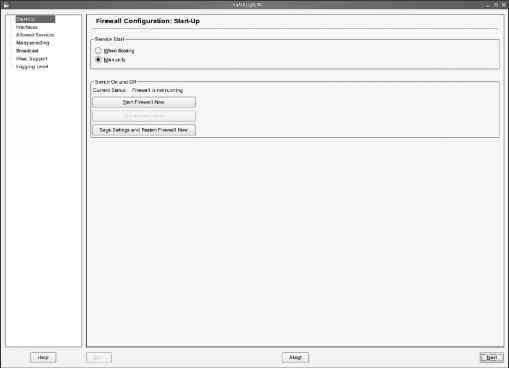
- Figure 30-1. You can easily configure the SUSE firewall from YaST.
2. As you can see, the firewall configuration interface consists of several steps that are all listed on the left part of the screen. First, under Start-Up, you can specify how the firewall starts. Make sure under Service Start, the option When Booting is selected (see Figure 30-2). This will start the firewall as early as possible in the boot process, which is necessary for optimal protection. You should be aware that if you don't start it automatically but instead do it manually, the server is unprotected from the time the network interfaces are activated on your server to the time you start the firewall manually. Also, because you could forget to start it completely, manually enabling the firewall is a bad idea. It would leave your server unprotected if for whatever reason it reboots. On this screen, you also have options to start and stop the firewall now. If you are not working from a remote connection, it is a good idea to click Start Firewall Now. That makes sure that from this moment on, your firewall is activated, and only services that you have specifically allowed can be accessed.
Tip Instead of using the screen shown in Figure 30-2, you can use the rcSuSEfirewall start command. This will read the current firewall configuration in the files in /etc/sysconfig/scripts and activate the firewall for you. Equally, you can use rcSuSEfirewall stop to stop the firewall from the command line.
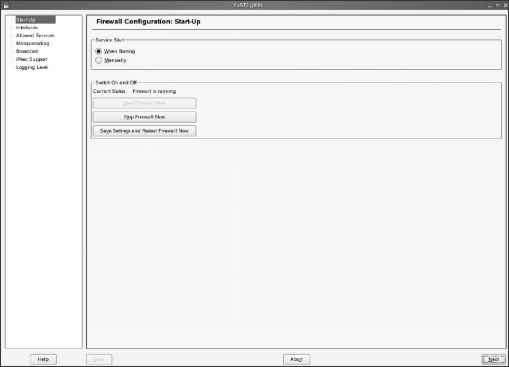
- Figure 30-2. For optimal protection, make sure the firewall is started automatically when booting the server.
3. Now click Interfaces. This opens the screen shown in Figure 30-3. On this screen, you can specify in what zone the network interfaces in your server live. This is an important setting on a server with more than one network board; such a server will probably have a public interface and a private interface, and on the public interface more protection is required than on the private interface. Therefore, the public interface is configured as the untrusted external zone, whereas the private interface is configured as the trusted internal zone. On a server with one network board only, you don't need to assign zones to an interface. However, if more than one network board is available in your server, you need to assign a zone to each network board. Next, when specifying which services are available through your firewall, for each service you need to specify for which zones it is allowed; this is described in the following step. Even if your server has only one network board, make sure it is assigned to a zone; the external zone is a good choice in that case. You can configure the following zones:
• Internal: This is the network board facing the internal network. It is the most trusted zone that is available.
• External: The external zone is connected to the Internet directly. This is the least trusted zone, and most services will be denied on that interface.
• Demilitarized zone (DMZ): This is a network card facing the DMZ in your network.
A DMZ is the part of the network where a company's servers available for users on the Internet typically are. The DMZ is behind the external firewall but should not be considered a trusted zone.
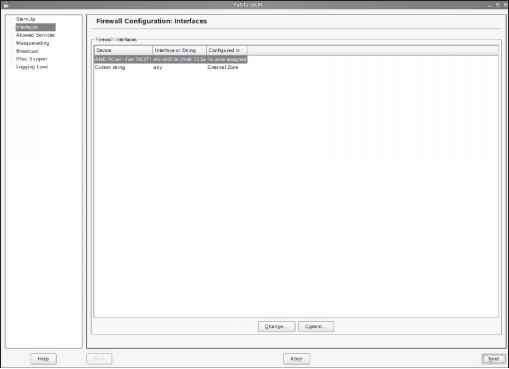
- Figure 30-3. On the Interfaces screen, you can specify in what zone a network interface lives.
4. Now click Allowed Services. On this screen (see Figure 30-4), you can specify what services are allowed in what zones. On this tab, you must first select the zone you want to configure. For each of the three zones, you need to specify what services are available. First, start with the external zone. Then from the Service to Allow drop-down list, one by one select each service you want to allow. Next click Add to add the service to the list of allowed services. Do this for all the services you need. After doing this for the external zone, repeat this procedure for the demilitarized zone. By default, all the zones are available on the internal zone. If this is not what you want, check the Protect Firewall from Internal Zone option, and for the internal zone, specify which services you want to allow.
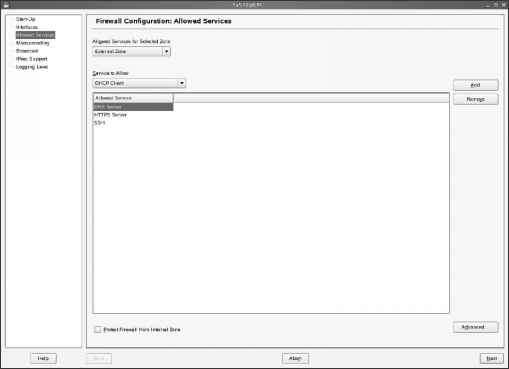
- Figure 30-4. For each zone, you need to indicate what services you want to allow.
5. Still on the Allowed Services screen shown in Figure 30-4, click the Advanced button. This opens the screen shown in Figure 30-5. Use this screen to specify TCP, UDP, RPC, or IP ports for services that are not in the Service to Allow drop-down list. If specifying an IP protocol, make sure you use the IANA service name of the protocol. You can find a list of valid protocol names in the file /etc/protocols.
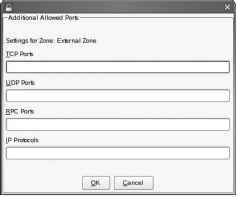
- Figure 30-5. For services that aren't in the Service to Allow drop-down list, you can use the Advanced button to enter their specific port numbers.
6. If more than one network card is in your server, you can configure your server for masquerading. IP masquerading, which is also referred to as NAT, is a technique in which users on the private network make a connection to servers on the Internet not with their own IP address but with the IP address of a router. If you are using SUSE Linux Enterprise Server as a router, check the Masquerade Networks box. This box is available only if two or more network cards are in your server. Since IP masquerading in professional networks is a task performed by a router appliance, I won't cover this subject in this book.
7. On the Broadcast screen (see Figure 30-6), you can configure the UDP ports that are allowed to listen to broadcasts. Specify only those ports that rely on broadcasting to offer their services. Optionally, you can also specify to log all broadcast packets that were not accepted. Since many network services (most notoriously Windows networking) use broadcasting rather heavily, this may overwhelm your log files with entries about broadcasts. Therefore, it is better not to select the option Log Not Accepted Broadcast Packets for any zone.
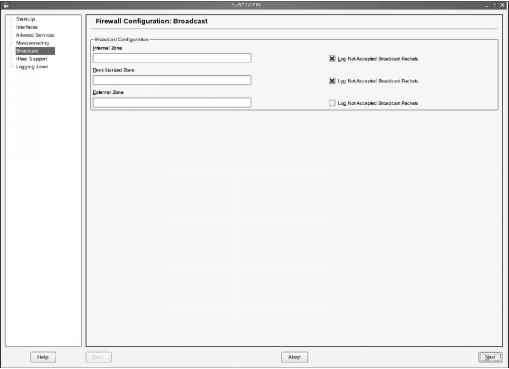
- Figure 30-6. The Broadcast screen allows you to specify which UDP ports should be open for broadcast on your server.
8. If your server needs to accept IPsec connections through the firewall, check the Enabled box on the IPsec Support screen (see Figure 30-7). To specify how IPsec traffic should be handled, click Details next. This allows you to choose from four options for handling incoming packets. From these, select the option that applies best for your situation. You can choose from the following:
You can trust IPsec as the same zone as the original source network. You can trust IPsec as a demilitarized zone. You can trust IPsec as an external zone. You can trust IPsec as an internal zone.
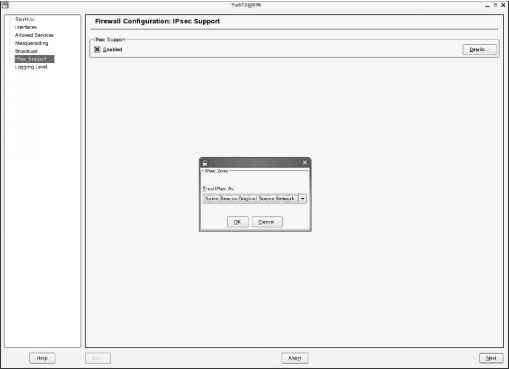
- Figure 30-7. The SUSE firewall allows you to accept incoming IPsec traffic.
9. On the last screen in the SUSE firewall setup process, you can specify the log level you want to use (see Figure 30-8). By default, both for accepted and for not-accepted packets, only critical events are logged. If you need to troubleshoot a connection, you can specify that all packets are logged. For both, you can choose from the following:
• Log All: This option will cause all the packets to be logged. You usually want to do this only to troubleshoot your firewall and see what traffic is accepted or rejected. Don't leave this on by default, because it will greatly impact the performance of your firewall.
• Log Only Critical: This is the default selection for both incoming and outgoing traffic. Logs are written only if something abnormal occurs.
• Do Not Log Any: Use this option if you are confident about how your firewall works and you don't need any additional information.
10. Now that you have entered all the settings for your firewall, click Next. This will show you an overview of the current configuration you have entered so far. If you are happy with it, click Accept to write the configuration to your server, and start the firewall with these settings.
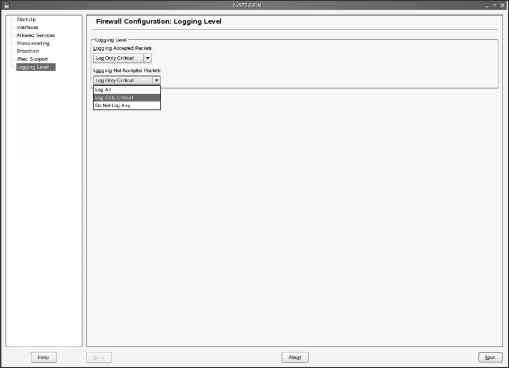
- Figure 30-8. Be careful what you choose on the Logging Level screen. Making the wrong choice can have a huge impact on the performance of your firewall.
Continue reading here: Monitoring App Armors Status
Was this article helpful?