Wubi Installing Ubuntu or Kubuntu on Windows
Versions of the Ubuntu and Kubuntu Desktop CDs prior to version 8.04 provided a variety of open source software packages that were compiled for Microsoft Windows systems, enabling Windows users to try out some of the amazing software that they could see and use after booting from the Desktop CDs in Live CD mode. These packages included Mozilla Firefox, Mozilla Thunderbird, the GIMP image creation and editing package, and several others.
Versions 8.04 and later of the Ubuntu and Kubuntu Desktop CDs stopped offering the Windows versions of these packages, providing an even better option for Windows users: the option to install Ubuntu or Kubuntu onto any existing Windows system without repartitioning your existing disk, adding a boot option to your Windows system that enables you to boot into either Ubuntu/Kubuntu or your existing Windows system. This capability is provided by an impressive package called Wubi (Windows-based Ubuntu Installer — http://wubi-installer.org). Installing Ubuntu or Kubuntu onto an existing Windows system requires a minimum of 4GB of disk space (5GB or better is recommended), but gives you a complete Ubuntu or Kubuntu system that is installed into a new directory on your Windows system. On the Windows side, a Wubi-based installation looks like any other Windows application, and can even be removed using the traditional Add/Remove Applications Control Panel application.
A Wubi installation works by creating an Ubuntu directory at the top level of your system's hard drive and populating that with the files that Wubi requires to boot Ubuntu or Kubuntu, including a filesystem image for that distribution. (This directory is named Ubuntu regardless of whether you are installing Ubuntu or Kubuntu.) The installation process adds an Ubuntu or Kubuntu option to your Windows boot menu, and then installs the boot loader (wubildr — the Wubi loader) that it uses to mount and access the filesystem image as the application that is executed when the Ubuntu or Kubuntu boot option is selected.
To take advantage of this installation option, insert an Ubuntu or Kubuntu 8.04 or better Desktop CD into the CD/DVD drive of an existing Windows system. Depending on whether you are using an Ubuntu or Kubuntu Desktop CD, one of the dialogs shown in Figure 2-26 displays.
FiGURE 2-26
Ubuntu and Kubuntu cD dialogs on a Microsoft Windows system ttaiua
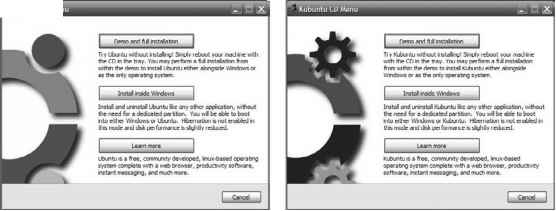
To install Ubuntu or Kubuntu on your existing Windows system, click Install Inside Windows. Depending on whether you are using an Ubuntu or Kubuntu Desktop CD, one of the dialogs shown in Figure 2-27 displays.
By default, the Username field shows the name of the Windows user that is currently logged in. If you want to use a different user when logging into your Wubi-based Ubuntu or Kubuntu installation, enter the username that you want to use.
Next, enter the password that you want this user to have on your Wubi-based Ubuntu or Kubuntu installation, verifying that you haven't made a typo by entering the password twice.
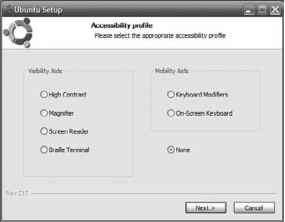
Finally, if you have any special Accessibility requirements, click Accessibility to display a dialog like the one shown in Figure 2-28, which shows the Ubuntu version of this dialog. After setting any accessibility options that you want to use, click Next to return to the main installation dialog.
To begin the installation process, click Install. You will see a progress dialog as Wubi verifies the checksums of the files and directories that it is installing, installs Ubuntu or Kubuntu into the filesystem image, and so on. A summary dialog displays when the installation completes, offering you the option to reboot now or later to start using your new Wubi-based Ubuntu or Kubuntu installation.
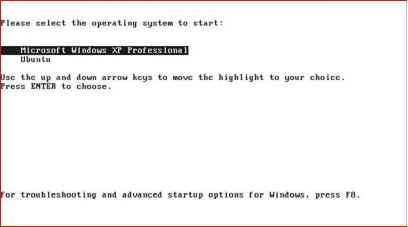
After installing Ubuntu or Kubuntu and Wubi, you will see a screen like that shown in Figure 2-29 the next time you boot your Windows system.
This screen shows the boot screen for a Wubi-based Ubuntu installation — a Wubi-based Kubuntu installation would offer a Kubuntu option. To boot into your existing Windows installation, simply press Enter/Return on your keyboard. To boot into Ubuntu (or Kubuntu), use the arrow keys to select that boot option and press Enter/Return.
figure 2-27
Beginning the Ubuntu or Kubuntu installation process on Windows
Beginning the Ubuntu or Kubuntu installation process on Windows
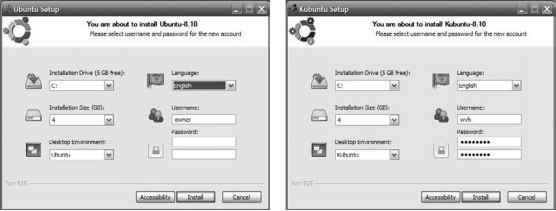
FIGURE 2-28
Accessibility settings for a Wubi-based installation on Windows
FIGURE 2-28
Wubi is another shining example of the creativity of the open source community; it provides yet another way for Windows users to experience the power of Ubuntu and Kubuntu Linux.
FIGURE 2-29
A Wubi boot screen on Windows
FIGURE 2-29
A Wubi boot screen on Windows
Continue reading here: Manually Specifying Your Partition Layout
Was this article helpful?
Readers' Questions
-
santina8 months ago
- Reply
-
Emilia8 months ago
- Reply