Effects with AIGLX
Several different initiatives have made strides in recent years to bring 3D desktop effects to Linux. openSUSE has the Xgl project (http://en.opensuse.org/Xgl), while Fedora has AIGLX (http://fedoraproject.org/wiki/RenderingProject/aiglx).
The goal of the Accelerated Indirect GLX project (AIGLX) is to add 3D effects to everyday desktop systems. It does this by implementing OpenGL (http://opengl.org) accelerated effects using the Mesa (www.mesa3d.org) open source OpenGL implementation.
Currently, AIGLX supports a limited set of video cards and implements only a few 3D effects, but it does offer some insight into the eye candy that is in the works.
Because direct rendering infrastructure (DRI) is required for AIGLX, cards that don't support that feature cannot be used. For example, NVidia cards are not currently supported and so cannot be used, although you can expect NVidia support to be added soon. The cards that are known to not work with AIGLX also include ATI Rage 128 and Mach 64, Matrox G200 through G550, and 3DFX Voodoo 1 and 2.
If your video card was properly detected and configured, you may be able to simply turn on the Desktop Effects feature to see the effects that have been implemented so far. To turn on Desktop Effects, select System C Preferences C Desktop Effects. When the Desktop Effects pop-up window appears, select Enable Desktop Effects, which does the following:
■ Stops the current window manager and starts the Compiz window manager.
■ Enables the Windows Wobble When Moved effect. With this effect on, when you grab the title bar of the window to move it, the window will wobble as it moves. Menus and other items that open on the desktop also wobble.
■ Enables the Workspaces on a Cube effect. Drag a window from the desktop to the right or the left, and the desktop will rotate like a cube, with each of your desktop workspaces appearing as a side of that cube. Drop the window on the workspace where you want it to go. You can also click on the Workspace Switcher applet in the bottom panel to rotate the cube to display different workspaces.
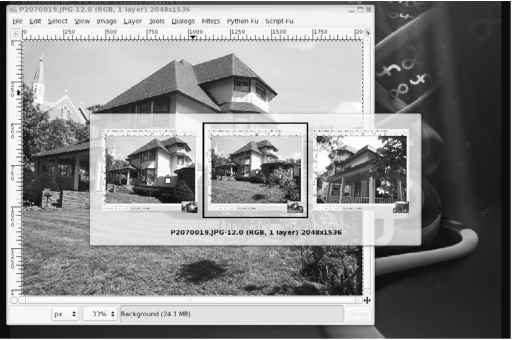
Other nice desktop effects result from using the Alt+Tab key combination to tab among different running windows. As you press Alt+Tab, a thumbnail of each window scrolls across the screen and the window it represents is highlighted.
Figure 3-13 shows an example of a Compiz desktop with AIGLX enabled. With Alt+Tab pressed, thumbnails of several GIMP windows (containing house pictures) scroll from right to left. The middle, highlighted thumbnail represents the window that is currently selected.
If you get tired of wobbling windows and spinning cubes, you can easily turn off the AIGLX 3D effects and return Metacity as the window manager. Just select System C Preferences C Desktop Effects again and toggle off the Enable Desktop Effects button to turn off the feature.
If you have a supported video card, but find that you are not able to turn on the Desktop Effects, check that your X server started properly. In particular, make sure that your /etc/X11/xorg.conf file is properly configured. Make sure that DRI and GLX are loaded in the Module section. Also, add an extensions section anywhere in the file (typically at the end of the file) that appears as follows:
Section "extensions" Option "Composite" EndSection
FIGURE 3-13
Alt+Tab through thumbnails of active windows with AIGLX desktop effects enabled.
FIGURE 3-13
Alt+Tab through thumbnails of active windows with AIGLX desktop effects enabled.
Another option is to add the following line to the /etc/X11/xorg.conf file in the Device section:
Option "XAANoOffscreenPixmaps"
The XAANoOffscreenPixmaps option will improve performance. Check your /var/log/ Xorg.log file to make sure that DRI and AIGLX features were started correctly. The messages in that file can help you debug other problems as well.
Continue reading here: Changing Gnome Preferences
Was this article helpful?