Ubuntu 8.10 Reference
Ripping Audio CDs Using Rhythmbox on Ubuntu

Ripping CDs in Rhythmbox is almost exactly like playing them (as shown in Figure 19-25), with the exception of the fact that you click the Extract button rather than the Play button to start the process. While Rhythmbox is extracting the contents of an audio CD and converting each track to a file, it displays progress information in the lower-left corner of the Rhythmbox dialog. Before ripping a CD, however, you may want to specify the format of the audio files that Rhythmbox creates, the...
Copying a CD or DVD with k3b

The k3b CD or DVD copy process consists of several steps k3b first creates an ISO image of the CD or DVD, ejects the original medium, requests a new CD or DVD, and then writes the ISO image to the new CD or DVD. To copy a CD or DVD after starting k3b, select either the Tools C> Copy CD or Tools C> Copy DVD menu commands. I'll use burning a DVD image as an example in this section, and therefore the dialog shown in Figure 19-58 is displayed. After verifying that the source and destination...
Summary Iei
Compositing window managers, specifically the Compiz window manager, have been the darlings of the Linux world for a while now. Compiz is now the default window manager installed and started on GNOME-based Ubuntu systems, and the upcoming release of KDE 4 promises the same level of out-of-the-box compositing support for Kubuntu fans. This chapter explained the basic concepts behind compositing window managers and provided a quick history of compositing on Linux and of Compiz itself. The chapter...
Installing and Configuring a Firewall
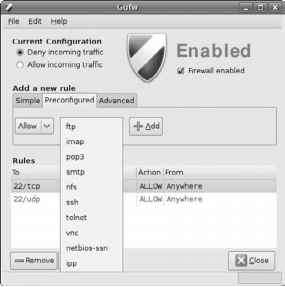
As mentioned in the previous section, many different software packages are available to help you configure and activate a firewall on your Ubuntu or Kubuntu system. These packages include the default package that is installed on Ubuntu and Kubuntu systems, ufw (the Uncomplicated Firewall), Lokkit, Firestarter, Fwbuilder, Guarddog, and many more. The default firewall package for Ubuntu and Kubuntu systems, ufw, is relatively easy to configure from the command line, but is even easier to...
Searching with Tracker
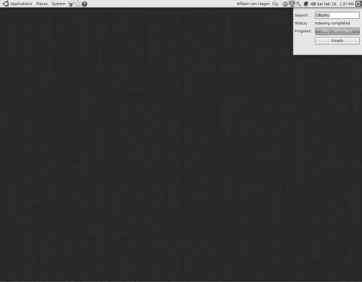
The Tracker daemon, trackerd, is automatically started as part of each Ubuntu user's GNOME login session. By default, Tracker automatically searches and indexes all of the files in your home directory. Once Tracker completes its initial scan of your files and directories, you can search the Tracker index in one of four basic ways From the Tracker panel applet, which starts the Tracker Search Tool. From the tracker-search-tool application, which you can start from the command line, or by...
Using a Window Manager
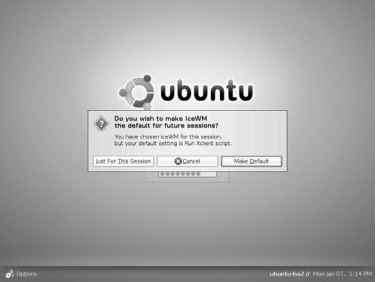
The first section of this chapter, What's a Desktop Graphical Environments for Linux, discussed the differences between window managers and desktops, and hinted at the fact that more X Window system window managers are available than you could shake a stick at. Popular window managers include After Step, Black Box, Compiz, Enlightenment, Fluxbox, Fvwm, ICEwm, kwm, Metacity, twm, vtwm, and Window Maker, but there are many, many more. After you experiment with GNOME for a while, you may be...
Installing an NFS Server
You can use the Synaptic Package Manager, the Adept Package Manager, or the command-line package management utilities described in Chapter 23 to install the packages required to run and monitor an NFS server on your Ubuntu or Kubuntu system. You must install both the nfs-common and nfs-kernel-server packages on any system where you want to run an NFS server only the nfs-common package is required on a system on which you only want to mount NFS filesystems. (Installing the nfs-kernel-server...
Configuring NFS Kernel Server Options
Options for the common NFS services for an NFS server are set in the file etc default nfs-kernel-server, which you can edit using your favorite text editor. Each of the following options is defined in a setting that looks like setting value, where value is one of yes or no. The options that you should set are the following RPCNFSDCOUNT Set this to a specific numeric value to identify the number of NFS daemon instances that you want to start. The default value, 8, is usually sufficient, although...
Using Desktop CD Persistence
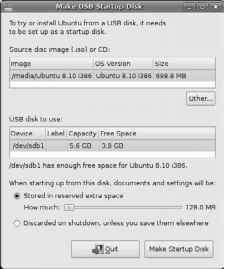
Live CDs such as the Ubuntu and Kubuntu Desktop CDs provide an easy way to temporarily turn any compatible computer system into an Ubuntu or Kubuntu Linux system. However, the fact that most Live CDs don't provide any sort of persistent storage for configuration data, custom applications, and so on (other than manually copying files to other local or networked storage) traditionally limited the practical usability of Live CDs to simple demonstrations, one-time experimentation, and general...
Adding a Printer on Ubuntu
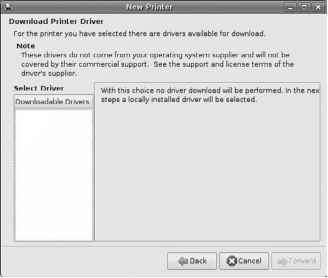
Earlier releases of Ubuntu enabled you to configure what should happen when a new printer was detected by your system. This was friendly but largely a waste of time because the answer is almost always Please configure the thing so that I can actually print on it. On a Ubuntu 8.10 system, attaching a USB printer usually results in a pop-up like the one shown in Figure 24-1 the printer is recognized, added, and configured, and your system is ready to use it. Auto-detection and configuration of a...
Using Network Manager on Ubuntu

By default, all interaction with network devices in Ubuntu 8.10 is done through the Network Manager's GNOME panel applet, nm-applet. This applet is displayed in the Notification Area in the top right portion of the GNOME panel, using an icon that looks like a frontal view of two slightly offset computer screens if you are connected to a wired network or a histogram if you are connected to a wireless network. (A red x is displayed at the bottom of the two-screens icon if you are not currently...
Linux and UNIX Printing History
Today's printers are typically high-quality laser or inkjet printers, often capable of color printing and near photographic quality. The original UNIX printing system, known as Line Printer Daemon (LPD) was designed to queue and print jobs that were intended for huge, text-only line printers. As more sophisticated printers were developed that were capable of higher-quality printouts (such as the original Xerox x9700, Canon-CX, and Imagen-300 laser printers), the original LPD print system...
Integrating Windows Printing with an Ubuntu Print Server
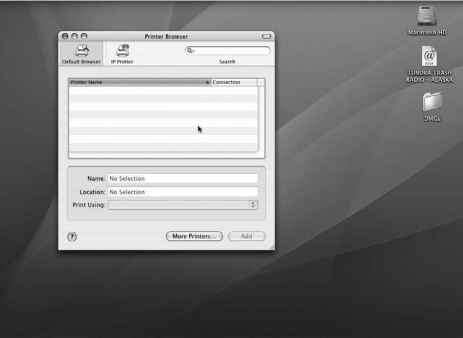
Configuring a Microsoft Windows 2000 or XP system to print to a remote Ubuntu printer is as simple as setting up access to any other shared network printer. The following example provides screenshots from a sample Windows XP system, but the process is very similar on earlier versions of Microsoft Windows 1. Select Start C Settings C Printers and Faxes. 2. Click the Add a Printer task. A hand-waving dialog displays that does nothing. Click Next to proceed. 3. Specify that you want to create a...
The Init Process
After loading the kernel and mounting a runtime root filesystem, traditional UNIX and Linux systems execute a system application known as the init (initialization) process, which is typically found in sbin init on Linux systems. Typically, the init process is process number 1 on the system, as shown in a process status listing produced using the ps command, and it is therefore the ancestor of all other processes on your system. The traditional init binary used on most UNIX and Linux systems is...
Defaults The default options async auto dev exec nouser rw and suid are used
Dev The character or block device containing the filesystem is local to the system. exec You can execute programs, scripts, or anything else whose permissions indicate that it is executable from that filesystem. gid value Set the group ID of the mounted filesystem to the specified numeric group ID when the filesystem is mounted. noauto Don't automatically mount when a filesystem is detected or when the command mount - a is issued. Usually used with removable media such as floppies and CD-ROMs....
Installing Microsoft Windows Drivers
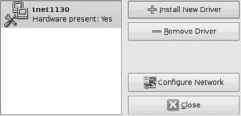
This section explains how to install Microsoft Windows drivers using the graphical ndisgtk utility, which (if you'll pardon the expression) puts a friendly wrapper around the ndiswrapper utilities, kernel module, and Ubuntu network configuration. You can also install Windows drivers for use with the ndiswrapper kernel module by using the command sudo ndiswrapper -i name-of-INF-file from any command-line environment, and then manually modifying some configuration files, but I prefer the...
Configuring Compiz Using Gnome Configuration Tools
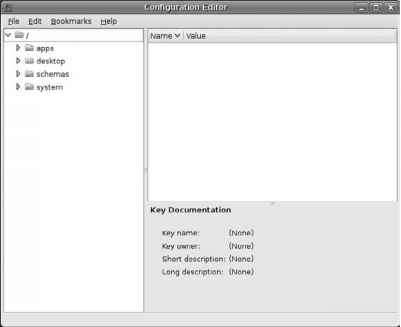
On Ubuntu systems, Compiz, the Compiz plug-ins, and the Compiz Fusion plug-ins can be configured using the standard GNOME configuration utilities without requiring that you install any special tools. GNOME systems provide two primary configuration utilities for manipulating the GConf (GNOME Configuration Editor) repository gconftool-2, a command-line utility, and gconf-editor, a graphical application. You should run these utilities as yourself, without using sudo, because they manipulate GNOME...
Creating Audio CDs with Brasero
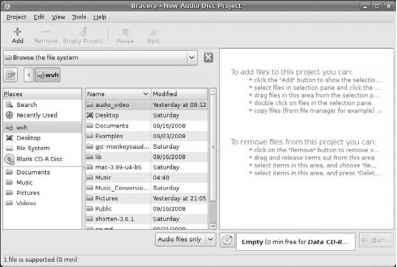
Brasero is one of the application choices that Ubuntu provides in the dialog shown in Figure 19-7 when you insert a blank CD. If you don't see this dialog, you can start Brasero by right-clicking on the Blank CD-R Disk icon and selecting Open with Brasero Disc Burning, or by selecting the Applications O Sound & Video O Brasero Disc Burning menu item. Unfortunately, Brasero always starts in Data CD mode, so you'll first need to select the Project O New Project O New Audio Project menu command...
GCC Compiler Overview
In uppercase letters, GCC is an acronym for the GNU Compiler Collection, formerly known as the GNU Compiler Suite. In lowercase letters, gcc is a specific compiler from the GNU Compiler Collection, the GNU C Compiler. GCC is a collection of compiler front ends for a common back-end compilation engine. The list of compilers provided by GCC includes C (gcc), C++ (g++), Objective C (gcc with a special library), Fortran (gfortran), and Java (gcj). GCC also has front ends for Pascal, Modula-3, and...
Configuring Wireless Connections on Ubuntu
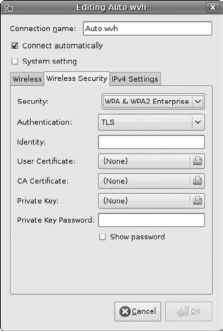
To examine or modify how a specific wireless connection is configured, or to create a new wireless connection, select the Wireless tab, which displays a pane like the one shown in Figure 25-6. p If you are connecting to a wireless network that uses WEP 40 128-bit Key, WEP 128-bit pj JUSOTlSSiaS Passphrase, and no security (which are almost functionally equivalent nowadays), you can quickly define a new wireless network connection by right-clicking on the network Manager applet and selecting the...
Test Drive Using Krita
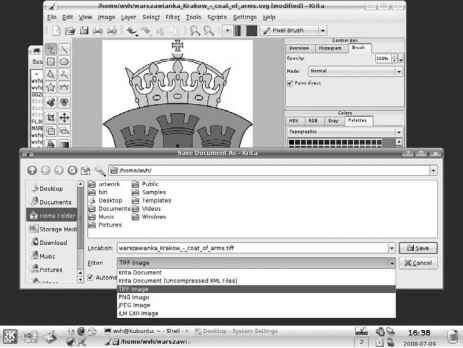
Discussing every nuance of creating and editing images in Krita is beyond the scope of this book, and probably deserves its own book. However, to give you a feel for using Krita, this section provides an example of using Krita to import an SVG image (which will use the RGB colorspace by default), changing the image to use the CMYK colorspace, and then saving it as a TIFF file that would be suitable for sending to a commercial printer. TO jili SSff Although the grayscale screenshots in this book...
Cutting Copying and Pasting in vi
It's easy enough to cut and paste text using a graphical text editor because a mouse-aware text editor enables you to copy and cut text with a combination of the mouse and special keyboard commands. You can, of course, do the same thing in vi, but it requires a bit more knowledge of vi internals and visualization. Cutting text is done using the delete command (explained in the previous section), which actually just puts the text in an internal storage area (known as a buffer) from which you can...
Restoring from Backups in BackupPC
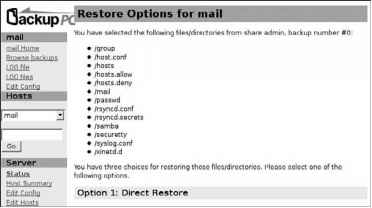
Thanks to BackupPC's Web orientation and the fact that its backups are stored online on the backup server, restoring files from BackupPC backups can be done online, by any authorized user whose name is associated with that host in the etc backuppc hosts file. BackupPC enables you to browse through online backups, interactively select the files and directories that you want to restore, and restore them in various ways. To begin restoring files or directories, click the name of the full or...
In s xsession xinitrc
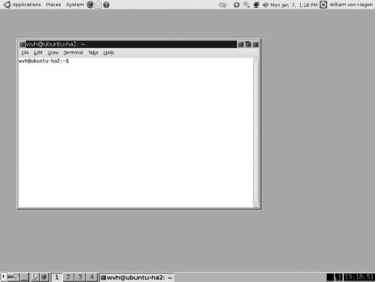
Experimenting with different window managers is fun because each represents someone's idea of how you should interact with a graphical system, start applications, and so on. I've been using the X Window system since version 10, and thus have burned more time than I could ever calculate in experimenting with, configuring, and customizing many of the window managers that have been written in the last 20+ years. But it's been fun. U j < -)n 'ow memory, low resource systems such as older laptops,...
Configuring Power Management
As mentioned in the previous section, the Screensaver Preferences dialog also provides a Power Management button that starts the Power Management Preferences application. A more common (and more intuitive) way of configuring power management and related activities is by selecting the System Preferences Power Management menu item. Selecting either of these displays the dialog shown in Figure 5-24. The Power Management Preferences dialog provides two or three tabs the On AC Power tab which...
Advantages of Using aptitude to Install and Remove Software
Although I am not such a fan of the aptitude user interface, aptitude itself does provide some significantly useful capabilities. Its search capabilities, discussed earlier in this chapter in the section Listing the Packages That Are Available for Your System, are easy to use and quite powerful exactly what you want in a utility. Similarly, the current version of aptitude has some other advantages when installing and, specifically, when removing packages. The most significant of these is the...
Games on Kubuntu Systems
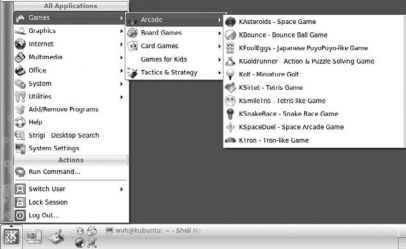
A tremendous number of free games are available for KDE-based distributions such as Kubuntu. Unlike GNOME-based Ubuntu systems, games are not installed on Kubuntu systems. To install them, you must use your favorite package management utility to install the kdegames package on KDE 3-based Kubuntu systems (i.e., Kubuntu 8.04 and earlier), or the kdegames-kde4 package on KDE 4-based Kubuntu systems (i.e., Kubuntu 8.10 and later). Installing these packages requires less than 50 MB of free disk...
Disks Partitions and Mount Points
The bottom line of any computer system is storing, retrieving, manipulating, and saving information. As a writer and computer systems administrator, I'm always amazed when friends who are generally computer savvy say to me, Your laptop is so slow. Why don't you upgrade Frankly, if I could type faster than my primary laptop's 1.4 GHz Pentium processor could handle, I'd be posing for Ripley's Believe It or Not ads or touring with the circus instead of writing books. On the other hand, if it took...
Using Pcmcia Cards
PCMCIA (Personal Computer Memory Card International Association) cards are the original mechanism designed to support removable and insertable interfaces in portable computer systems. PCMCIA cards are now often just called PC Cards because no one can ever remember what the acronym means (as suggested by the optional PCMCIA expansion, People Can't Memorize Computer Industry Acronyms ). Thanks to the rise of USB, PCMCIA cards aren't as common as they once were, but they're still a standard...
Wubi Installing Ubuntu or Kubuntu on Windows
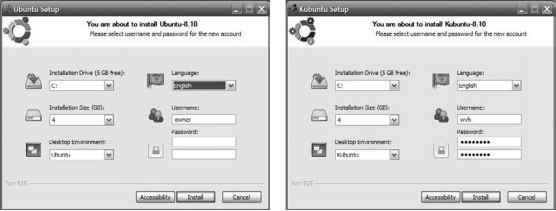
Versions of the Ubuntu and Kubuntu Desktop CDs prior to version 8.04 provided a variety of open source software packages that were compiled for Microsoft Windows systems, enabling Windows users to try out some of the amazing software that they could see and use after booting from the Desktop CDs in Live CD mode. These packages included Mozilla Firefox, Mozilla Thunderbird, the GIMP image creation and editing package, and several others. Versions 8.04 and later of the Ubuntu and Kubuntu Desktop...
Playing DVDs Using Dragon on KDE 4Based Systems
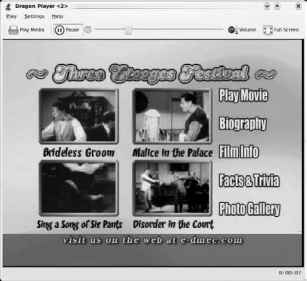
Dragon Player (http dragonplayer.org) is a simple DVD and video media player that was designed for KDE 4, and is therefore the default DVD video player on Kubuntu 8.10 systems. Dragon uses the Xine video multimedia back end that is current the primary video back end for KDE 4, so you should make sure that you install the kubuntu-restricted-essentials and libxinel-all-plugins packages before attempting to play a DVD on your KDE 4-based Kubuntu system. After inserting a DVD in your drive on a KDE...
Enabling Additional Repository Components
The most common example of a situation in which you will want to access repository components other than the main and restricted components is when working with audio and video applications. The wide variety of CODECs (compressor decompressor modules) used to encode digital audio and video, the platform-specific roots of many of these CODECs, and the hoops that many media companies make you jump through in order to actually play many digital audio and video formats on an Ubuntu Linux system...
Burning an ISO Image to CD or DVD with k3b
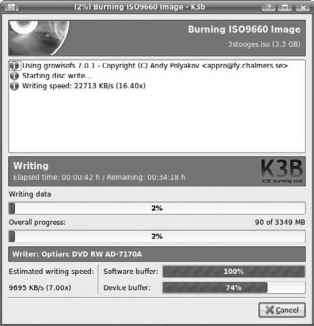
To burn an ISO image to a CD or DVD after starting k3b, click the Burn CD Image or Burn DVD ISO Image buttons from the main k3b dialog, or select the Tools C Burn CD Image or Tools C Burn DVD ISO Image menu commands. I'll use burning a DVD image as an example in this section, and therefore the dialog shown in Figure 19-55 is displayed. The k3b dialog for burning an ISO image The k3b dialog for burning an ISO image To navigate to the directory where your ISO image is located, click the folder...
Adding and Configuring Printers on Kubuntu
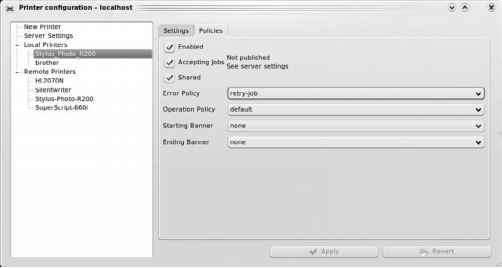
The transition from KDE 3 to KDE 4 has led to some changes in how you add and configure printers, as well as in the degree to which they can be configured. The processes are largely the same across the two KDE versions, although the KDE 4 dialogs have simplified the process. On the downside for KDE 4 fans, the KDE 3-based Kubuntu 8.04 and earlier systems have some configuration bells and whistles that haven't made it the KDE 4-based Kubuntu 8.10 and later systems at the time that this book was...
Using Krita
Krita (www.koffice.org krita) is a KDE-based image creation and editing tool that many people prefer to GIMP (especially KDE purists who don't want to have to install GIMP's GTK baggage on their shiny KDE boxes). As you may have noticed, I'm not a purist I believe in installing the best tool for the job on my Linux systems, and that disk space is cheap. So why use Krita rather than GIMP If you're a Kubuntu user, Krita uses the KDE libraries and GUI conventions, and works seamlessly with other...
Using the Evolution Setup Assistant
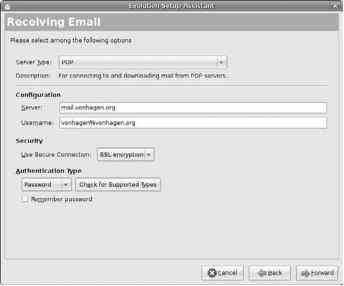
When Evolution actually starts up for the first time, the first window of the Evolution Setup Assistant, like the one shown in Figure 9-2, displays and walks you through the process of creating your first e-mail account in Evolution. The Setup Assistant when starting Evolution for the first time The Setup Assistant when starting Evolution for the first time A slight clarification here, just to be on the safe side the Evolution Setup Assistant configures Evolution to send and receive e-mail for...
Starting and Exiting Emacs
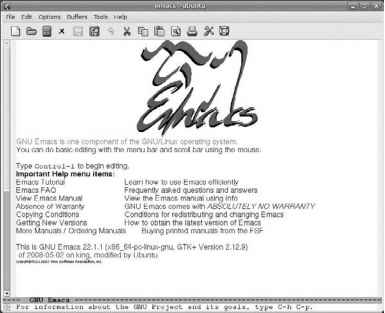
As with vi, to begin editing a file in Emacs, you can do either of the following Select the Emacs 22 (GTK) command from the Applications C Accessories menu. In any xterm or GNOME Terminal window, simply type the command Emacs filename, where filename is the name of the file that you want to edit. By default, starting Emacs from a terminal window on an Ubuntu system creates a new window for the Emacs application. As a result, you will probably want to follow the name of the file that you want to...
VThe page at httpshelp ubuntu com communi ty Root Sudo explains how to
Pt JUSOTlSfiie change a Ubuntu or Kubuntu system to reenable the traditional root account. Although this is possible, I strongly suggest that you do not do this unless you have an excellent, site-specific reason to do so and are willing to have your Ubuntu and Kubuntu system(s) be fundamentally different from all other Ubuntu and Kubuntu systems in the known universe. This section explains the internals of the sudo command and its configuration file, and discusses how to grant administrative...
Using a Scanner
Most modern scanners are USB devices and are well supported on Linux systems, as are older scanners that use a real SCSI interface. Scanners are supported on Linux systems through the SANE (Scanner Access Now Easy) interface and associated front-end and back-end applications. The home of the SANE project is www.sane-project.org. If you are still shopping for a scanner or are interested whether support for a specific scanner is available under Linux, see the page at www.sane-project.org...
Building a Standalone Package
The Ubuntu repositories are great and contain most of the software that most people will ever want. However, if you're looking for a specific application and it isn't in the Ubuntu repositories, the first thing to do is to use a search engine such as Clusty or Google to try to locate someone who has already built the application that you're looking for and offers it as a DEB package that you can install on your Linux system. Some trust issues are involved in this scenario you have to hope that...
Using aptitude to Install Recommended Software
If you have been using apt-get to install new software and the apt-get utility informs you that other packages are recommended or suggested for installation, you may want to consider using aptitude's command-line interface rather than apt-get. The DEB packages used by Ubuntu identify various dependences, divided into five different classes Conflicts Packages (or package versions) with which a package conflicts, and which cannot therefore be installed on a system when a specified package is...
Configuring IMAP Accounts for Receiving Mail
The beginning of this section explained the configuration details that apply to any e-mail account that you create in Kontact, regardless of whether you are receiving mail via the POP3 or IMAP protocols. This section explains the additional items shown in Figure 10-6 that are specific to IMAP accounts. For IMAP accounts, you can specify the following Store IMAP password This option enables Kontact to remember the IMAP password for this account so that you don't have to specify it each time you...
Setting Preferences for Sending Mail in Kontact
While I usually customize some aspects of reading and viewing mail in Kontact, I'm pretty happy with the default values that Kontact uses when composing and sending mail. However, like everything about e-mail in Kontact, you can customize many aspects of composing and sending mail by selecting Settings O Customize Kontact menu item and selecting the E-Mail O Composer item in the left pane.
Greylisting via postgrey
In the section on Installing Postfix and Friends, I suggested that you install postgrey, which is a grey-listing application that was designed to work with Postfix. That package is set up and started automatically and requires no other mandatory configuration if you installed it when you installed and started Postfix, it's already working for you. As mentioned in the installation section, greylisting is a cool technique wherein your mail server rejects all incoming mail the first time that a...
Using IRC in Pidgin
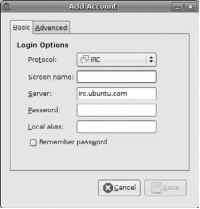
As discussed in the section Instant Messaging on Ubuntu with Pidgin, IRC is one of the messaging protocols that is built into Pidgin. Because most IRC servers are open, you can create an IRC account and connect to an IRC server without having to pre-register, but you must create a Pidgin account to do this. You create your Pidgin IRC account like any other account, by selecting the Accounts C> Manage menu option and selecting the IRC protocol, as shown in Figure 13-32. Your screen name is...
Using Inkscape
Inkscape is an open source application for creating and editing vector graphics, and is similar to traditional applications such as Adobe Illustrator, Aldus (Adobe) Freehand, and CorelDraw. Inkscape can also import graphics in a variety of raster graphics formats that it can use as components of its SVG output. Inkscape can even export graphics in PNG format for compatibility with raster-only applications and older Web browsers.
Using the Adept Manager on KDE 4Based Systems
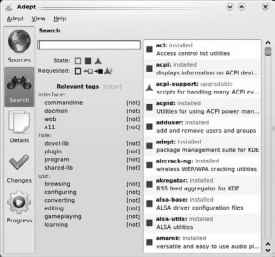
The Adept utilities are installed by default as part of any Kubuntu installation. Select the K Menu C> Applications C> System C> Package Manager menu item to start the Adept Package Manager. As when trying to run any graphical administrative application on Kubuntu, you will be prompted for your administrative password before the Adept Manager actually starts. Figure 23-42 shows the dialog displayed when you first start the Adept Manager. sound system from The official Kill- release GNOME...
Finding Torrents
At this point, I hope that you're thinking, Well, BitTorrent sounds like the best thing since sliced bread, but where do I get these torrents from Because BitTorrent doesn't provide the same sort of search features as P2P networks such as Gnutella, you have to have a torrent file to actually use it. You may have noticed that the torrent I used as an example in the previous section is a live recording by the Grateful Dead, who are well known for allowing fans to freely share their live concert...
Installing Wicd
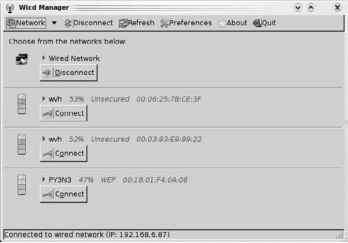
Both Ubuntu and Kubuntu systems are currently committed to the Network Manager and related applets, so in order to install Wicd, you will first have to modify the list of sources that provide repositories from which your Ubuntu or Kubuntu systems can install software. You can do this using Ubuntu's System C> Administration C> Software Sources application, using the Sources icon in Kubuntu's Adept Manager, or by directly modifying your etc apt sources.list file. You will need to add the...
Configuring Wicd
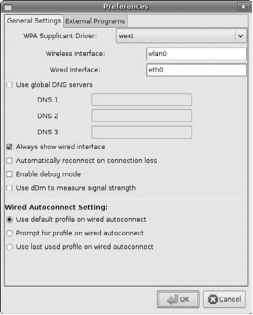
To configure Wicd, select the Preferences menu option from the Wicd Manager to display its configuration dialog, shown in Figure 26-7. In most cases, you won't need to modify Wicd's basic settings, but this dialog provides some useful options. The handiest of these is the ability to identify the names of the Ethernet devices associated with wired and wireless devices on your system. If you insert or change wireless adaptors while Wicd is running, you will probably need to modify the name of the...
Install Options on the Alternate Install CD
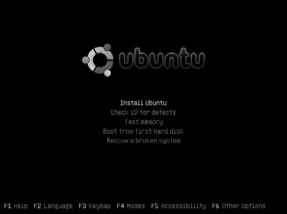
Figure 3-36 shows the menu that is displayed when you boot your system from an Ubuntu Alternate Install CD. For parity, Figure 3-37 shows the menu that is displayed when you boot your system from a Kubuntu 8.10 Alternate Install CD. The boot menu on the Ubuntu Alternate Install CD The boot menu on the Ubuntu Alternate Install CD The boot menu on the Kubuntu Alternate Install CD Check U'D for defects Test memory Boot from Jirst hard disfc Rnsrue a broken system Fl Ittlp F2 Language F3 Keycap F4...
Installing an LTSP Server
The Linux Terminal Server Project (LTSP, www.ltsp.org) is one of the most excellent Linux development efforts ever. The LTSP enables you to configure a system to act as a central server for large numbers of lightweight Linux clients, much like a Microsoft Windows Terminal Server except for the price differential. As you might expect, Windows Terminal Server and its associated per-client access licenses (CALs) cost a tremendous amount of money, while the LTSP is free for both servers and any...
Installing Kerberos Client and Server Commands
Using Kerberos requires that you either build and install it yourself from scratch or that a few basic packages are already installed on your systems. If you need to build it yourself, you can download the latest version from MIT at http web.mit.edu kerberos www. However, building Kerberos is rarely necessary on Ubuntu and Kubuntu systems, because the Ubuntu repositories already provide an up-to-date version of the Kerberos packages that you'll need on the system that acts as your Kerberos...
Migrating Email to Linux
Because e-mail is one of the two killer applications for modern computing (the other being the Web browser), preserving your existing e-mail is a pretty important aspect of moving to a new computer. This is especially true if you're also moving to a new operating system such as Ubuntu. I'm pretty compulsive about saving e-mail I still have messages that I exchanged with friends in the early 1990s. (I used some proprietary and academic mail systems before that, but I'm not 100 percent...
Installing TeX and LaTeX
Because TeX isn't for everybody, it isn't installed by default on Ubuntu or Kubuntu Linux systems. The Ubuntu repositories provide a huge number of TeX-related files, but the only one that you really need to install is the texlive package, which depends on many others and therefore guarantees that you'll get everything you need for a usable TeX formatting environment. You may also want to install the appropriate texlive-doc package for your national language which, for English-speakers like me,...
Configuring Sound Devices Levels and System Sounds on Kubuntu Systems
Most of the setup for your Kubuntu system's audio components is done automatically when you install your Kubuntu Linux system. Kubuntu's installer has excellent hardware detection capabilities and automatically installs and configures the ALSA (Advanced Linux Sound Architecture) utilities, drivers, and libraries that Kubuntu uses to provide excellent, high-quality audio playback. The following sections enable you to specify and test the sound devices used by your system, set sound levels on...
Specifying System Sound Devices
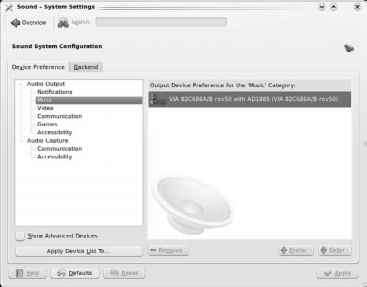
To verify that sound is working on your Kubuntu Linux system, first check the obvious things, such as whether your speakers are plugged into your sound card's audio out port (usually a light green socket the central one of the three sound ports on the back of your system or on your sound card), the speakers are turned on, and so on. Sound preferences on both KDE 3 and KDE 4 systems are set within the K Menu C> Systems Settings application. To begin configuring the sound devices on your...
The Boot Loader
Boot loaders typically consist of two stages a minimal first-stage boot loader and a more elegant, second-stage boot loader. The size of a first-stage boot loader is constrained by the size of the MBR on a storage device, which is a single sector (512 bytes). The first-stage boot loader, therefore, primarily contains enough information to locate and load the second-stage boot loader, which is where all the action is. As mentioned earlier, Linux offers two boot loaders, LiLo and GRUB. The LiLo...
Loading and Using an Initial RAM Disk or RAM Filesystem
Many Linux systems use a special type of filesystem as part of the boot process, before actually mounting the nontransient storage devices that are attached to your system. These initial filesystems are optional, and come in two different flavors an initrd (initial RAM disk) or initramfs (initial RAM filesystem). On most desktop and server computer systems, these initial filesystems are typically used to load kernel modules, such as specialized device drivers that the kernel needs but that are...
Package Management Software Overview
Ubuntu and Kubuntu Linux installations provide several different utilities for managing and querying software packages, ranging from low-level command-line tools to tools with sophisticated graphical interfaces. The following are the basic user-level tools provided as part of a standard Ubuntu or Kubuntu installation apt-get A command-line utility that provides subcommands, which enable you to install, remove, and manage packages on your system, both as individual packages and as components of...
Ubuntu Repositories and Components
A repository is exactly what the name suggests, a storage site for objects of some sort. In the case of the Ubuntu repositories, the objects stored therein are all of the source and binary packages that make up a variety of Ubuntu Linux distributions, including both standard GNOME-based Ubuntu Linux and the KDE-based Kubuntu Linux.
Using gtkpod
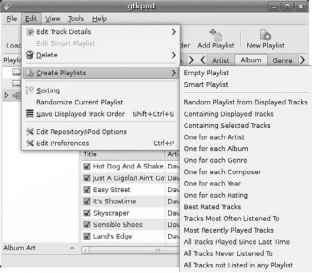
Installing gtkpod on a Ubuntu system creates the Applications C> Sound and Video C> gtkpod menu item, the K Menu C> Multimedia C> gtkpod menu entry on Kubuntu 8.04 and earlier systems, and the K Menu C> Applications C> Multimedia C> gtkpod menu entry on Kubuntu 8.10 and later systems. Selecting this menu item starts gtkpod. If your iPod was mounted and can be accessed successfully, it should be listed in the pane at the left of the gtkpod window. To see the actual contents of your...
Configuring the GStreamer Framework and Plug Ins
As introduced in the previous section, most GNOME audio and video applications use an underlying open source multimedia framework called GStreamer (http gstreamer.freedesktop.org or www.gstreamer.net). GStreamer makes it easy to integrate codecs by writing simple plug-ins that integrate with its framework. Most of the GNOME applications discussed in this chapter leverage the GStreamer framework for codec support via plug-ins. For this reason, you should use your favorite package management...
Customizing Digital Device Recognition on KDE 4based Systems
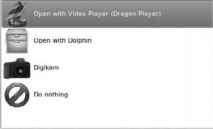
As mentioned elsewhere in this book (especially in Chapter 8), KDE 4 is a work in progress, which means that some things happen faster than others. One thing that has not happened very quickly is making it easy for users to customize what happens when you attach a digital device such as a USB stick, digital camera, or digital audio player to your system. At the moment, the only option in the Device Notifier for any of these is Open with Dolphin (as shown in Figure 21-8), which is not the...
Using GCCs C Compiler
The gcc compiler supports a tremendous number of command-line options to control its behavior. It accepts both single-letter options, such as -o, and multiletter options, such as -ansi. Because it accepts both types of options, you cannot group multiple single-letter options together, as you may be used to doing with many GNU and UNIX Linux programs such as ps, ls, and so on. For example, the multiletter option -pg is not the same as the two single-letter options -p -g. The -pg option creates...
Working with Digital Cameras on Kubuntu Systems

DigiKam is the most popular application for working with digital photographs on a Kubuntu system, though other applications are available, most notably KPhotoAlbum (http kphotoalbum.org). DigiKam makes it easy to import photos from a digital camera or other storage device, and provides a number of convenient plug-ins for common photo editing and touchup tasks. Open with DigiKam is one of the default options on a KDE 3-based system when you attach a standard digital camera to a USB port on your...
Integrating Mail Scanner Spam Assassin and ClamAV with Postfix
MailScanner is a fast, powerful tool that scans incoming mail for spam and can optionally be configured to scan incoming mail for viruses. The Ubuntu MailScanner package requires that the SpamAssassin package (discussed in the section of Chapter 9 entitled Automatically Checking for Junk Mail) be installed on your system so that it can invoke the SpamAssassin package after performing its own spam checks, to maximize the chances that it will catch and flag incoming spam. The Mailscanner package...
Hardware Requirements
As with any computer software, you'll have a better experience if you install and use Ubuntu on the most powerful system that you have available, but Ubuntu and Kubuntu will technically still run fine (although slowly) on your dusty 25 MHz i386. However, the American national slogan is eminently true here More is better. Taking off my Linux evangelist hat for a moment, you shouldn't really bother trying to install and run Ubuntu or Kubuntu on a system with a processor that runs slower than 166...
Using the Kthememanager Application to Install Themes
The KDE 3 desktop comes with many attractive themes. By default, KDE 3-based Kubuntu systems use a combination of a custom Kubuntu splash theme, window style and decoration theme called Plastik, an icon theme called Crystal SVG, and a standard KDE color scheme. The previous section explained how to use the System Settings application's Appearance screens to customize the appearance of the theme that is currently being used on your Kubuntu system. However, many complete alternative themes are...
Migrating from Internet Explorer Safari to Firefox
If you have not used Firefox on your Windows or Mac OS X system, you can take advantage of its configuration import and conversion capabilities to simplify migrating your Internet Explorer or Safari settings to Ubuntu or Kubuntu. Firefox is a useful migration tool because the first time that you start it on a new system, it displays a series of dialogs that offer to import the settings from your existing Web browser(s). These settings are automatically converted into the formats used by...
NDIS Wrapper Tips and Tricks
As you can see from the previous section, many Microsoft Windows drivers just work with the ndiswrapper kernel module when installed correctly. Unfortunately, some don't. I won't pretend to have tested every possible piece of wireless hardware and its associated Windows drivers (though I'd be happy to try if you would just send me a sample of the hardware that I can keep), but I have used many different ones with a wide selection of wireless hardware when configuring laptops for a variety of...
Burning Data CDs and DVDs Using Nautilus
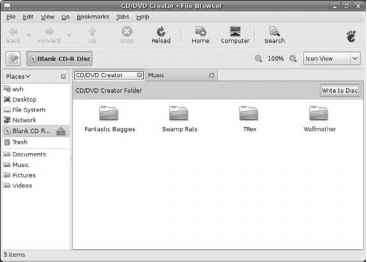
GNOME's CD DVD Creator application, which is just the Nautilus file manager running in a special mode, is similarly easy to use to create data CDs and DVDs from selected files on your system. You can only create data cDs and DVDs using Nautilus's cD DVD creator you cannot create audio CDs. The CD DVD Creator is one of the application choices that Ubuntu provides in the dialog shown in Figure 19-7 when you insert a blank CD. (If you don't see this dialog, you can right-click on the Bank CD icon...
Manually Specifying Your Partition Layout

Manually specifying the layout of the partitions on your system can be useful, but is also time-consuming and requires some understanding of the Linux filesystem. Manually partitioning your system enables you to put specific directories from the Linux filesystem on their own partitions, which can improve performance, minimize the size of backups for your system (because backups are usually done on a per-filesys-tem or per-directory basis), and simplify future upgrades and system...
Locating Partitioning and Formatting New Drives
After rebooting your system to locate new internal drives, you'll probably want to use the storage that those new disks provide. This requires that you identify the Linux device nodes associated with them, and then use various software packages to partition them and format those partitions using your filesystem of choice. As you might expect, there are some great command-line utilities for displaying information about the disks that are attached to your system, partitioning them, and formatting...
Networking and Virtual Box
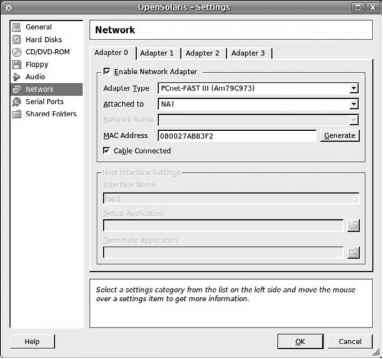
VirtualBox includes an internal DHCP server and built-in support for NAT (Network Address Translation) that enables your virtual machines to automatically obtain IP addresses on a private, Internet subnet. Virtual machines that you create in VirtualBox automatically use NAT networking to reach external networks such as the Internet. Unfortunately, such communications are handled by VirtualBox rather than through standard networking infrastructure. This means that, by default, you can't use...
Using the Konqueror Browser
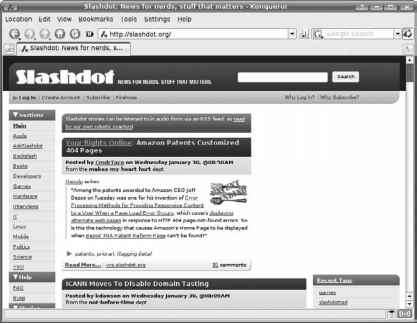
As mentioned in the previous section, Konqueror is the file manager traditionally associated with modern KDE releases. Over time, Konqueror has morphed from a file manager to an one-size-fits-all browser for many different types of objects, ranging from files to network locations to Web sites. (This is much like Microsoft's integration of Internet Explorer and the Windows Explorer, except less evil and free.) With the inclusion of the Dolphin file manager in all future KDE releases, Konqueror...
Configuring Portable Audio Devices in Amarok
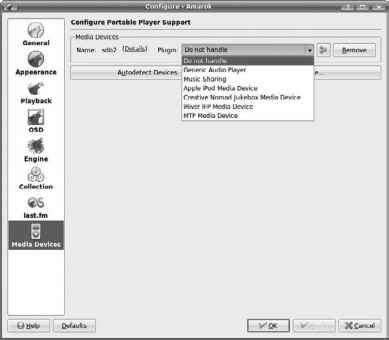
Though opening a portable audio device in Amarok is an option on the default Device Notifier dialog, Amarok requires some configuration before you can easily work with portable audio devices. This is primarily so that Amarok can work correctly with audio devices such as the iPod, which store data in special formats and locations. Regardless of whether you start Amarok from the K Menu C Multimedia C Amarok -Audio Player menu on a KDE 3-based system, from the K Menu C Applications Multimedia C...
Dpkg l emacs
Half-installed (Status.Err uppercase bad) Name Version Description ii ii ii un ii ii ii un un un ii un un un ii emacs-chess-pieces 2.0b5-1 emacs-goodies-el 26.4-1 emacs-goodies-extra-el < none> 21.4a-3ubuntu2 21.4a-3ubuntu2 21.4a-3ubuntu2 < none> < none> < none> 1.4.17 < none> < none> < none> a client library for Chess XPM images of chess pieces Miscellaneous add-ons (no description) The GNU Emacs editor The GNU Emacs shared The GNU Emacs shared (no description...
Installing a Desktop System in Text Mode
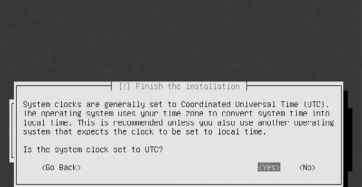
Selecting Install in text mode from the Ubuntu or Kubuntu Alternate Install CD's boot menu enables you to install an Ubuntu Desktop system using the text-mode installer. This menu option is useful in various scenarios, such as the following You are having problems getting the appropriate Desktop CD to boot on your system because of conflicts or problems with your graphics hardware. You want to install the Ubuntu or Kubuntu Desktop system but use logical volumes rather than physical partitions...
Playing Audio CDs with Amarok on Kubuntu
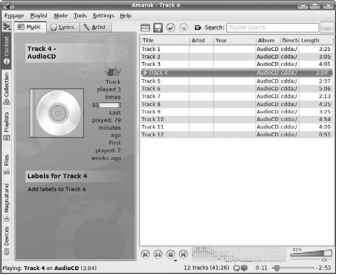
Once Amarok starts, it displays its startup screen and tries to look up your CD in the free online CD information database freedb.org, or at least claims to do so. If it finds a matching entry, it displays information about the CD and the tracks that it contains. However, I've never had much luck getting Amarok to actually retrieve this information for me on the latest KDE 3-based Kubuntu systems, although it does a good job of this on KDE 4-based Kubuntu systems. I typically don't worry about...
Gksudo gdhcpd
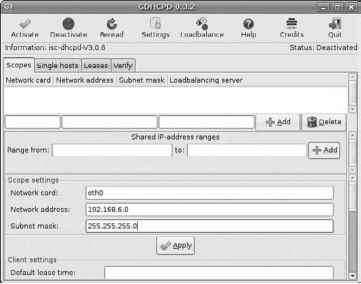
After you supply your password, the gdhcpd utility starts, as shown in Figure B10-1. Starting the GNOME DHCP configuration utility Starting the GNOME DHCP configuration utility Scopes j Singta hovU j Lease* I Verify Network card Network address Subnet mask Loadbalancing server Don't worry if the gdhcpd application displays a message about not being able to find the DHCP server in your path because (by default) it looks for a DHCP server executable named dhcpd, while the name of the ISC v3 DHCP...
Playing Audio Files and Internet Radio Using Rhythmbox
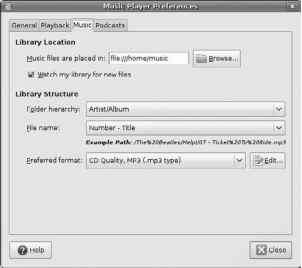
Rhythmbox was discussed earlier in this chapter in the context of playing CDs, but it's really much more. Rhythmbox is oriented toward audio delivered in a variety of file formats, whether as a CD, a stream that you can read over the Internet, or a physical file that you downloaded or ripped, stored on your computer system, and subsequently want to play. To start Rhythmbox, select the Applications C> Sound and Video C> Rhythmbox Music Player menu command. Figure 19-61 shows the default...
Default Widgets in KDE
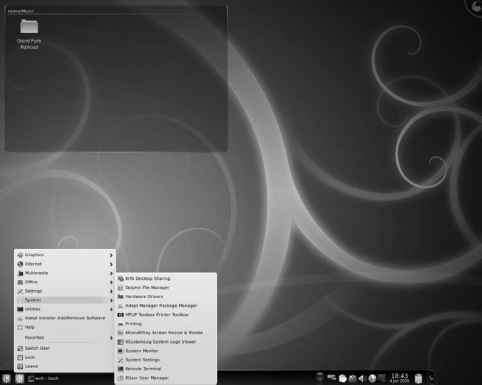
At the time that this book was updated, a basic KDE 4 installation included the following widgets Analog Clock A traditional clock, with hands to indicate the time (as shown in Figure 8-19). You can click this clock to display a calendar that simplifies the lookup of past and future dates. Application Launcher The new KDE 4 K Menu, based on SUSE's Kickoff application launcher. This widget is installed by default, at the left-most position in the panel. Application Launcher Menu A traditional,...
Billions and Billions of Versions of Chess
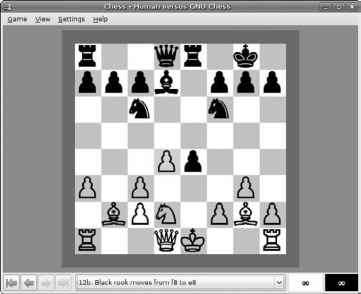
In the world of open source computing, chess has two things going for it it's incredibly popular, and nobody owns it. The fact that chess and its ancestors have been popular for a few thousand years as a thought-provoking strategy game makes it no surprise that versions of computer chess have existed since computers had enough memory to manage any sort of sophisticated game play. The fact that nobody owns the rights to the name chess means that there are no royalty or licensing entanglements,...
Adding Buddies in Pidgin
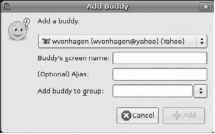
A buddy is the term for a person with whom you expect to communicate frequently via IM. As explained in the previous section, you don't actually have to add someone to your buddy list in order to send them an instant message, but you'll probably want to add your friends to your buddy list if you're going to communicate with them frequently (unless your memory is a lot better than mine is). When you first start using instant messaging, you may not have any predefined buddies, and your Buddy List...
Aisle Riot Solitaire
I've played solitaire since I was a kid, and somehow thought that there was only one solitaire game that being, of course, the one that I'd learned to play, which turned out to be Klondike. I became more enlightened recently when my wife asked me what other versions of solitaire were available. Googling told me that there were indeed a few zillion solitaire games, so I bought her an analog data storage device that came preloaded with information about solitaire that is, a book on the subject. I...
Using KEdit
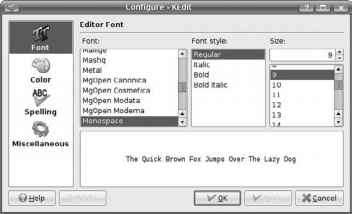
KEdit is a simple text editor for Kubuntu that is analogous to gedit a fast, minimal text editor that is easy on system resources. Figure 15-18 shows KEdit displaying the contents of this chapter as I was working on it. KEdit is no longer installed by default on KDE 3-based Kubuntu systems, but can be added by installing the kedit package using the Adept Manager. (Kedit doesn't seem to be available for KDE 4-based Kubuntu systems.) This is not a criticism of Kedit, but simply acceptance of the...
Managing Your Bookmarks
Over time, most people tend to accumulate huge collections of bookmarks, which makes it harder and harder to find the right bookmark which somewhat defeats the idea of having bookmarks in the first place. To solve this problem, Firefox includes an excellent bookmarks organizer that makes it easy to organize and search your valuable collection of bookmarks, known as your Library.
Using and Managing Your Calendar
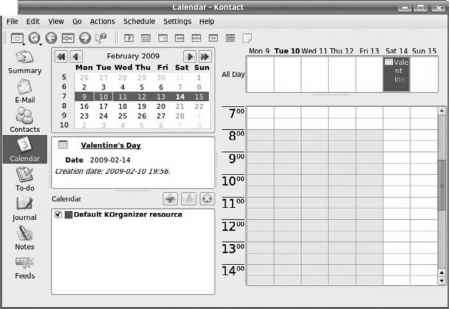
Managing one's calendar and To-Do items is an important part of a personal information management application because remembering where you have to be and what you have to do is a fairly critical aspect of getting organized in the first place. As mentioned earlier, managing your calendar, To-Do list, and even a journal is supported in Kontact through an integrated application known as KOrganizer, which is simply known as the Calendar application in Kontact. Kontact's Calendar application lets...
Instant Messaging Overview
Believe it or not, people were actually online even before the Internet. Bulletin-board systems (commonly referred to as BBSs) were a popular early personal computing phenomenon, consisting of computers running specialized, multi-user software that users could connect to using a modem, and on which users could read and send both public and private messages using a terminal-based interface. (Many BBS systems also supported inter-BBS e-mail by forwarding messages from one system to another using...
Creating and Using KSpread Spreadsheets
KSpread (www.koffice.org kspread ) is the spreadsheet component of the KDE KOffice office suite (www.koffice.org). KSpread is installed by default on Kubuntu systems running KDE 3.5.x, but is not installed by default on Kubuntu systems running KDE 4.x (at least not at the time of this writing). KSpread provides a lighter-weight alternative to OpenOffice.org Calc as well as tight integration with the other components of the KOffice suite. This integration makes it easy to embed KSpread...
Configuring Screen Resolution
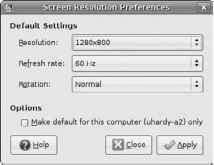
When you installed Ubuntu, one of the questions you were asked was to select the display resolutions that you want to be able to use. It's nice of the Ubuntu installer to ask this question, but display resolution is one of those things that's hard to visualize in advance it really makes sense only when you can see what different resolutions actually look like. Consequently, even if you are using a 30-inch monitor and the sexiest video card in the universe, you may find that your Ubuntu Linux...
Overview and Comparison of App Armor and SELinux
Both AppArmor and SELinux are examples of what are known as Mandatory Access Control (MAC) systems. At the operating system level, MAC systems limit the ability of processes or threads to access other operating system resources such as files, memory, network and other device resources, and so on. This is typically implemented by associating security attributes with each operating system object (application process, thread, file, memory region, network or device descriptor, etc.). When a process...
Word Processing and More with KWord
Long before OpenOffice.org was even a gleam in the eye of Tux, the Linux penguin mascot, Linux users still needed to create documents graphically. Over the years, a fine selection of quality business office applications have been developed for both the GNOME and KDE desktop environments, including suites for each environment. For GNOME, the GNOME Office suite (http live.gnome.org GnomeOffice) is a loosely coupled grouping of business office applications that includes applications such as the...
Creating Xen DomainU Configuration Files
Each Xen virtual machine is defined in a configuration file that tells the Xen Management utility, xm, how to allocate resources, where to find the disk image for hardware virtual machines or kernel and root filesystem for paravirtualized virtual machines , and so on. This section explains the basic format of a Xen configuration file for both paravirtualized systems and hardware virtual machines. Subsequent sections on creating each type of Xen virtual machine will provide a specific example of...
Sudo etcinitddropbear start
To check that AppArmor complain-mode messages are being written to the system log, use a command like the following sudo grep dropbear var log messages Dec 14 14 26 06 ubuntu kernel 12245.881212 type 1502 audit(1229801166.910 574) operation socket_sendmsg family inet6 sock_type stream protocol 6 pid 11134 profile usr sbin dropbear Dec 14 14 26 06 ubuntu kernel 12245.881266 type 1502 audit(1229801166.910 575) operation file_permission requested_mask w denied_mask w fsuid 1000 name dev pts 2 pid...
Sudo mount t nfs o mountoptions serverexporthome mint
The filesystem type is nfs, rather than nfs4, and you must supply the full pathname of the exported filesystem. Your mount options specification should also include the string nfsvers 3 to mount the exported directory in NFS 3 mode. As mentioned previously, many mount options can be specified in a mount-options string when mounting NFS filesystems manually or in etc fstab entries. The mount-options string is a comma-separated sequence of mount options (and associated values, if required). The...
Installing Packages in Synaptic
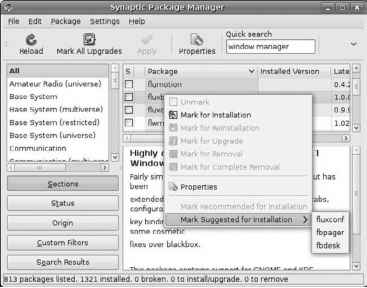
After locating a package that you want to install, right-click on its name in the upper-right pane and select Mark for Installation from the pop-up menu, as shown in Figure 23-20. If installing the selected package requires that other packages be installed, Synaptic displays a dialog like that shown in Figure 23-21. Marking a package for installation in Synaptic Marking a package for installation in Synaptic This dialog lists all packages whose installation is required by the package that you...
Backup Software for Linux
Many backup utilities are available for Ubuntu and Kubuntu systems. Most of these are traditional command-line utilities that can either create archive files or write to your backup media of choice in various formats, but some interesting open source graphical solutions are also beginning to appear. The next few sections discuss the most common open source utilities that are used to do backups on Linux systems, grouping them into sections based on whether they create local backup files or are...
Using KWrite
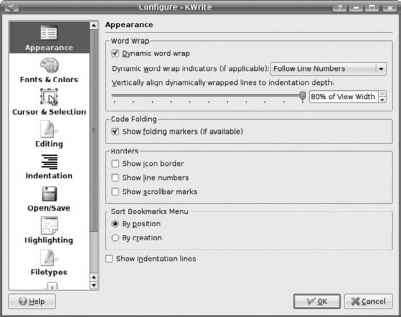
KWrite is a small, fast text editor for Kubuntu that is also extremely customizable. On Kubuntu systems running KDE3.x systems, KWrite is provided in the same Kubuntu package as the more complex and powerful Kate editor (discussed in the next section), and is therefore installed by default on Kubuntu systems. (KWrite is also installed by default on Kubuntu systems running KDE 4.x, but is a standalone package there.) Figure 15-20 shows KWrite displaying the contents of this chapter as I was...
Using gtkgnutella
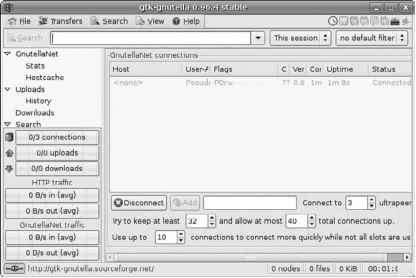
Installing gtk-gnutella as described in the previous section creates a menu item on the Applications O Internet menu. To start gtk-gnutella, click the Gtk-Gnutella item on this menu, which starts the application and displays a window like the one shown in Figure B2-23. The first time that you start gtk-gnutella, it will create the gtk-gnutella-downloads directory in your home directory, which is where it will store the files that it downloads. This directory contains three subdirectories...