Configuring your sound card
Before you can use sound on your Red Hat Linux system, you need to install your sound card and connect the speakers. Red Hat Linux should detect this card when you install Red Hat Linux or when you reboot and install the proper driver. Drivers for many common sound cards are available when you first install Red Hat Linux. Earlier releases of Red Hat Linux did not have sound card devices built into the kernel, but the current release of Red Hat Linux automatically builds sound support into the kernel.
Probably the easiest way to check if your sound card is working is to insert a music CD into the drive and (if one doesn't start automatically) start one of the CD players described in the next section. As an alternative, you can check if the basic sound module is installed. For example, you could type:
$ cat /proc/modules | grep soundcore soundcore 4112 4 [es1371]
This example shows that the soundcore module has been loaded and that the sound card driver is the Ensoniq ES1371 driver.
Note If you have a sound file, you can send it directly to a sound device (for example, cat file.wav >
/dev/audio) to test your sound card. You can use a sound file from /usr/share/sndconfig to test your sound card in Red Hat Linux. To find a sound file on your Windows 95/98 system, use the Find window (Start ® Find ® Files or Folders) and do an advanced search for Sound Clip. If you hear a sound clip, then your sound card is working. If your speakers are plugged in and the volume is up, but you don't hear any sounds, continue with the next procedure to configure your sound card.
Run /usr/sbin/sndconfig (this starts the Sound Card Configuration Utility).
A sndconfig window is displayed, asking ask if you want to probe for Plug-and-Play cards. Press Enter to select OK.
If the utility finds a sound card that it recognizes, it displays the name of that card and asks if you want to configure it. The sndconfig window just described is shown in Figure 8-1.
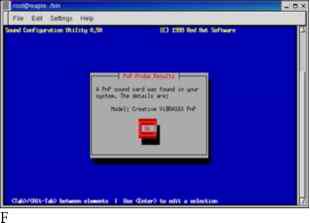
- igure 8-1: The sndconfig utility finds and configures your sound card.
In this example, sndconfig detects a Creative Sound Blaster 16 card (Creative ViBRA16X PnP). Press Enter to select OK.
A message warns you that you are replacing the old /etc/conf.modules file. Press Enter to select OK.
A message tells you that a sound sample will play to check if the card is configured properly. Press Enter to select OK.
You are asked if you heard the sound.
If you hear the sound, select Yes and skip to step 12. Otherwise select No to continue.
You are asked to manually configure your sound card. Press Enter to select OK.
A list of sound cards is displayed. Select your card and press Enter to select OK.
Select OK to try the sound card again.
You are asked again if you were able to hear the sample. If you hear the sound, select Yes to continue. Otherwise select No to try a different card.
You are warned that a new /etc/modules.conf file is being created (and the old one is being backed up). Press Enter to select OK.
At this point, you can try to run an audio file again. Type cat Hle.au > /dev/audio. If all went well, you should hear the audio file this time. At this point, you should be able to use any of the CD music players or applications that use sound to play sound through your sound card.
Tip When I configured my sound card, the default sound level was a bit low for my taste. I inserted a music CD to have something to listen to. Then I ran the aumix command to adjust the volume levels. Volume (Vol) should be highlighted when aumix opens. You can use the right and left arrows to adjust volume levels. Use the up and down arrows to choose particular sound devices: speaker, line, mic, CD, and so on. With a device highlighted, use the tab key to be able to adjust balance for the device. Type s to save the changes and q when you are done.
Continue reading here: Audio file conversion
Was this article helpful?
Readers' Questions
-
isengrim1 month ago
- Reply
-
Maximilian1 year ago
- Reply