Creating the Samba server configuration with SWAT
You can run the SWAT program, by typing the following URL from your local browser:
http://localhost:901/
Instead of running SWAT from your local browser, you can also run the SWAT program from another computer on the network, by substituting the server computer's name for localhost. (To allow computers besides localhost to access the swat service, you must change or remove the only_from = 127.0.0.1 line from the /etc/xinetd.d/swat file and restart the xinetd service.) At this point, the browser will prompt you for a user name and password. Enter the root user name and password. The SWAT window should appear, as shown in Figure 18-2.
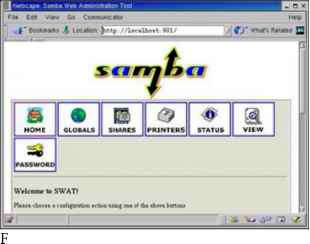
- igure 18-2: Use SWAT from your browser to manage your Samba configuration.
The rest of this section describes how to use SWAT to create your configuration entries (in /etc/samba/smb.conf) and to work with that configuration.
Caution Any time you use a GUI to change a plain-text configuration file (as you do with SWAT), it is possible that you will lose some of the information that you put in by hand. In this case, SWAT deletes comment lines and rearranges other entries. Make a backup copy of your /etc/samba/smb.conf file if you edit it with SWAT after you have edited it by hand. Creating global Samba settings
A group of global settings affects how file and print sharing are generally accomplished on a Samba server. They appear under the [global] heading in the /etc/samba/smb.conf file. There are six option types available: Base options, security options, logging options, printing options, browse options, and WINs options. To view and modify your global Samba server settings, click the Globals button. Then add the following options.
Base options
The following options relate to basic information associated with your Samba server.
Workgroup — The name of the workgroup associated with the group of SMB hosts. By default, the value for this field is "workgroup."
Netbios Name — The name assigned to this Samba server. You can use the same name as your DNS hostname.
Server String — A string of text identifying the server. This name appears in places such as the printer comment box. By default, it says Samba Server.
Interfaces — Lets you set up more than one network interface. This enables Samba to browse several different subnetworks. The form of this field can be IP Address/Subnetwork Mask. Or, you could identify a network interface (such as eth0 for the first Ethernet card on your computer). For example, a Class C network address may appear as:
192.168.24.11/255.255.255.0
Security options
Of the security options settings, the first option (security) is the most important one to get right. It defines the type of security used to give access to the shared file systems and printers to the client computers.
Security — Sets how password and user information is transferred to the Samba server from the client computer. As noted earlier, it's important to get this value right. The default value for security (security=user) is different than the default value for security (security=share) in pre-2.0 versions of Samba. If you are coming from an earlier version of Samba and clients are failing to access your server, this setting is a good place to start. Here are your options: ♦
user — The most common type of security used to share files and printers to Windows 95/98/2000 and Windows NT clients. It is the default set with Samba in the current release. This setting is appropriate if users are doing a lot of file sharing (as opposed to a Samba server used mostly as a print server). It requires that a user provide a user name/password before using the server.
The easiest way to get this method working is to give a Red Hat Linux user account to every client user who will use the Red Hat Linux Samba server. This provides basically the same file permissions to a user account through Samba as the same user would get if he or she were logged in directly to Red Hat Linux.
Caution Apparently, there is a bug in Windows for Workgroups that causes the password that the user types in to be ignored from a "connect drive" dialog box. Instead, Windows uses the user name and password in effect for the user's current Windows login session. One way around this problem, although it is clumsy from a security standpoint, is to assign the same user name/password combination for each user on the Red Hat computer that they use in Windows.
share — The share value for security works best for just print sharing or for providing file access that is more public (guest sharing). A client doesn't need to provide a valid user name and password to access the server. However, the user will typically have a "guest" level of permission to access and change files. See the sidebar describing guest accounts for further information.
server — The security option that, from the client's point of view, is the same as user security, in that the client still has to provide a valid user name/password combination to use the Samba server at all. The difference is on the server side. With server security, the user name/password is sent to another SMB server for validation. If this fails, Samba will try to validate the client using user security.
domain — The security option that, from the client's point of view, looks the same as user security. This setting is used only if the Samba server has been added to a Windows NT domain (using the smbpasswd command). When a client tries to connect to the Samba server in this mode, its user name and password are sent to a Windows NT Primary or Backup Domain controller. This is accomplished the same way that a Windows NT server would perform validation. Valid Red Hat Linux user accounts must still be set up.
Encrypt Passwords — Controls whether encrypted passwords can be negotiated with the client. This is off (No) by default. For domain security, this value must be true. Later versions of Windows NT (4.0 SP3 or later) and Windows 98 and Windows 2000 expect encrypted passwords to be on.
Update Encrypted — Allows users who log in with a plain-text password to automatically have their passwords updated to an encrypted password when they log in. Normally, this option is off. It can be turned on when you want an installation using plain-text passwords to have everyone updated to encrypted password authentication. It saves users the trouble of running the smbpasswd command directly from the server. After everyone is updated, this feature can be turned off. When this option is on, the encrypt passwords option should be set to no.
Guest Account — Specifies the user name for the guest account. When a service is specified as Guest OK, the user name entered here will be used to access that service. The account is usually the nobody user name.
Tip Make sure that the guest account is a valid user. (The default of nobody should already be set up to work.) Without a valid user as the guest account, the IPC$ connection that lists the shared resources will fail.
Hosts Allow — Contains a list of one or more hosts that are allowed to use your computer's Samba services. By default, users from any computer can connect to the Samba server (of course, they still have to provide valid user names and passwords). Usually, you use this option to allow connections from specific computers or computer networks that are excluded by the Hosts Deny option.
Hosts Deny — Contains a list of one or more hosts from which users are not allowed to use your computer's Samba services. You can make this option fairly restrictive, and then add the specific hosts and networks you want to use the Samba server. By default, no hosts are denied.
Assigning Guest Accounts
Samba always assigns the permissions level of a valid user on the Red Hat Linux system to clients who use the server. In the case of share security, the user is assigned a guest account (the "nobody" user account by default).
If the guest account value isn't set, Samba goes through a fairly complex set of rules to determine which user account to use. The result is that it can be hard to assure which user permissions will be assigned in each case. This is why it is recommended to use "user security" if you want to provide more specific user access to your Samba server.
Secure Socket Layer options
The ssl CA certFile option lets you define the location of a file that contains all certificate authorities Samba uses. By default, Red Hat Linux uses the following file: /usr/share/ssl/certs/ca-bundle.crt.
Logging options
The following options help define how logging is done on your Samba server.
Log File — Defines the location of the Samba smb log file. By default, Samba log files are contained in /var/log/samba (with file names log.nmbd, log.smbd, and smb.log). In this option, the %m is replaced by smb to set the smb log file as /var/log/samba/smb.log.
Max Log Size — Sets the maximum amount of space, in kilobytes, that the log files can consume. By default, the value is set to 0 (no limit).
Tuning option
The Socket Options option lets you pass options to the protocols Samba uses to communicate. The following options are set by default: TCP_NODELAY, SO_RCVBUF=8192, and SO_SNDBUF=8192. The first option disables Nagle's algorithm, which is used to manage the transmission of TCP/IP packets. The other two options set the maximum size of the sockets receive buffer and send buffer to 8192, respectively. These options are set to improve performance (reportedly up to 10 times faster than without setting these options). In general, you shouldn't change these options.
Printing option
The Printing option is used to define how printer status information is presented. For Linux systems (including Red Hat Linux), the value is typically LPRNG. You can use printing styles from other types of operating systems, such as UNIX System V (sysv), AIX (aix), HP UNIX (hpux), and Berkeley UNIX (bsd), to name a few.
Browse options
A browse list is a list of computers that are available on the network to SMB services. Clients use this list to find computers that are not only on their own LAN, but also computers in their workgroups that may be on other reachable networks.
With the latest release of Samba, browsing is supported. In Samba, browsing is configured by options described below and implemented by the nmbd daemon. If you are using Samba for a workgroup within a single LAN, you probably don't need to concern yourself with the browsing options. If, however, you are using Samba to provide services across several physical subnetworks, you may consider configuring Samba as a domain master browser. Here are some points to think about:
Samba can be configured as a master browser. This allows it to gather lists of computers from local browse masters to form a wide-area server list.
If Samba is acting as a domain master browser, Samba should use a WINS server to help browse clients resolve the names from this list.
Samba can be used as a WINS server, although it can also rely on other types of operating systems to provide that service.
There should be only one domain master browser for each workgroup. Don't use Samba as a domain master for a workgroup with the same name as an NT domain.
If you are working in an environment that has a mix of Samba and Windows NT servers, you should use an NT server as your WINS server. If Samba is your only file server, you should choose a single Samba server (nmbd daemon) to supply the WINS services.
Note A WINS server is basically a name server for NetBIOS names. It provides the same service that a DNS server does with TCP/IP domain names: it can translate names into addresses. A WINS server is particularly useful for allowing computers to communicate with SMB across multiple subnetworks where information is not being broadcast across the subnetworks' boundaries.
To configure the browsing feature in Samba, you must have the workgroup named properly (described earlier in this section). Here are the global options related to SMB browsing.
Note If you have trouble getting browsing to work, check the nmbd log file (/var/log/samba/log.nmb). If you need more detail, increase the debug information level to 2 or 3 (described earlier in this section) and restart Samba. The log can tell you if your Samba server is the master browser and, if so, which computers are on its list.
OS Level — Set a value to control whether your Samba server (nmbd daemon) may become the local master browser for your workgroup. Raising this setting increases the Samba server's chance to control the browser list for the workgroup in the local broadcast area.
If the value is 0, a Windows machine will probably be selected. A value of 60 will probably ensure that the Samba server is chosen over an NT server. The default value is 20.
Preferred Master — Set this to Yes if you want to force selection of a master browser. By setting this to Yes, the Samba server also has a better chance of being elected. (Setting Domain Master to Yes along with this option should ensure that the Samba server will be selected.) This is set to Auto by default, which causes Samba to try to detect the current master browser before taking that responsibility.
Local Master — Set this to Yes if you want the Samba server to become the local browser master. (This is not a guarantee, but gives it a chance.) Set the value to No if you do not want your Samba server selected as the local master. Local Master is Auto by default.
Domain Master — Set this to Yes if you want the Samba server (nmbd daemon) to identify itself as the domain master browser for its workgroup. This list will then allow client computers assigned to the workgroup to use SMB-shared files and printers from subnetworks that are outside of their own subnetwork. This is set to No by default.
WINS options
Use the WINS options if you want to have a particular WINS server provide the name-to-address translation of NetBIOS names used by SMB clients. As noted earlier, you probably don't need to use a WINS server if all of the clients and servers in your SMB workgroup are on the same subnetwork. That's because NetBIOS names can be obtained through addresses that are broadcast. It is possible to have your Samba server provide WINS services.
DNS Proxy — By setting this to Yes, Samba will use Domain Name Service (DNS) to determine the IP address of each NetBIOS name that is requested. This assumes that your NetBIOS names are the same as your TCP/IP names for each computer. One restriction is that NetBIOS names cannot be more than 15 characters, which could be a problem with long domain/host names. This is set to No by default.
WINS Server — If there is a WINS server on your network that you want to use to resolve the NetBIOS names for your workgroup, you can enter the IP address of that server here. Again, you will probably want to use a WINS server if your workgroup extends outside of the local subnetwork.
WINS Support — Set this value to Yes if you want your Samba server to act as a WINS server. (It's No by default.) Again, this is not needed if all the computers in your workgroup are on the same subnetwork. Only one computer on your network should be assigned as the WINS server.
Besides the values described here, you can access dozens more options by clicking the Advanced View button. When you have filled in all the fields you need, click Commit Changes at the bottom of the screen to have the changes written to the /etc/samba/smb.conf file.
Configuring shared file systems with SWAT
To make your shared directory available to others, you can add an entry to the SWAT window. To use SWAT to set up Samba to share directories, do the following:
Note You may see one or more security warnings during the course of this procedure. These are to warn you that someone can potentially view the data you are sending to SWAT. If you are working on your local host or on a private LAN, the risk is minimal.
From the main SAMBA window, click Shares.
Type the name of the directory that you want to share in the Create Share box, then click Create Share.
Comment — A few words to describe the shared directory (optional).
Path — The path name of the directory you are sharing.
Guest Account — If Guest OK is selected, then the user name that is defined here is assigned to users accessing the file system. The nobody user account (which is used only by users who access your computer remotely) is the default name used. (The FTP user is also a recommended value.)
Read Only — If Yes, then files can only be read from this file system, but no remote user can save or modify files on the file system. Select No if you want users to be allowed to save files to this directory over the network.
Guest OK — Select Yes to enable anyone access to this directory without requiring a password.
Hosts Allow — Add the names of the computers that you want to allow access to this file system. You can separate hostnames by commas, spaces, or tabs. Here are some valid ways of entering hostnames:
Allow access to the local host.
192.168.74.18 — IP address. Enter an individual IP address.
192.168.74. — Enter a network address to include all hosts on a network. (Be sure to put a dot at the end of the network number or it won't work!)
maple, pine — Enable access to individual hosts by name.
EXCEPT host — If you are allowing access to a group of hosts (such as by entering a network address), use EXCEPT to specifically deny access from one host from that group.
Hosts Deny — Deny access to specific computers by placing their names here. By default, no particular computers are excluded. Enter hostnames in the same forms you used for Hosts Allow.
Browseable — Indicates whether you can view this directory on the list of shared directories. This is on (Yes) by default. (See Viewing Available Samba File Systems for a description of how to view shared file systems.)
Available — Enables you to leave this entry intact, but turns off the service. This is useful if you want to close access to a directory temporarily. This is on (Yes) by default. Select No to turn it off.
Select Commit Changes.
At this point, the shared file systems should be available to the Samba client computers (Windows 9x, Windows NT, Windows 2000, OS/2, Linux, and so on) that have access to your Linux Samba server. Before you try that, however, you can check a few things about your Samba configuration.
Checking your Samba setup with SWAT
From the SWAT window, select Status. From this window you can restart your smbd and nmbd processes. Likewise, you can see lists of active connections, active shares, and open files. (The preferred way to start the smbd and nmbd daemons is to set up the smb service to start automatically. Type chkconfig smb on to set the service to start automatically at boot time.)
Testing Your Samba permissions
You can run several commands from a shell to work with Samba. One is the testparm command. Use the testparm command to check the access permissions you have set up. It lists global parameters that are set, along with any shared directories or printers.
Checking the status of shared file systems
The smbstatus command can be used to view who is currently using Samba shared resources offered from your Red Hat Linux system. The following is an example of the output from smbstatus:
Samba version 2.2.1a
Service uid gid pid machine
Temp nobody nobody 2943 snowbird (10.0.0.12) Mon Nov 22 10:52:22 2001
Locked files:
Pid DenyMode R/W Oplock Name
2943 DENY_NONE RDONLY EXCLUSIVE+BATCH /tmp/install.log Mon Nov 22 11:17:04 2002
Share mode memory usage (bytes):
1048360(99%) free + 136(0%) used + 80(0%) overhead = 1048576(100%) total
This output shows that from your Red Hat Linux Samba server, the Temp service (which is a share of the /tmp directory) is currently open by the computer named snowbird. The user and group nobody is being used to access the resource. The PID (2943) is the process number of the smbd daemon on the Red Hat Linux server that is handling the service. The only file that has been opened is the /tmp/install.log file. The file is available as read-only (RDONLY).
Continue reading here: Sendmail local info entries
Was this article helpful?
Readers' Questions
-
santa10 months ago
- Reply